 SynthCrew
Review and Apply
Inspect a candidate, confirm Apply and recover from blocked changes.
Before you start
Open a real project and start a project chat, not General chat. Save the source CAD documents before starting the agent run. The candidate lives in an isolated workarea: original project files are unchanged before Apply by candidate promotion. A Plan alone does not apply changes. This describes candidate promotion, not a sandbox guarantee: Full access can allow tool commands to reach files outside the candidate.
What to inspect
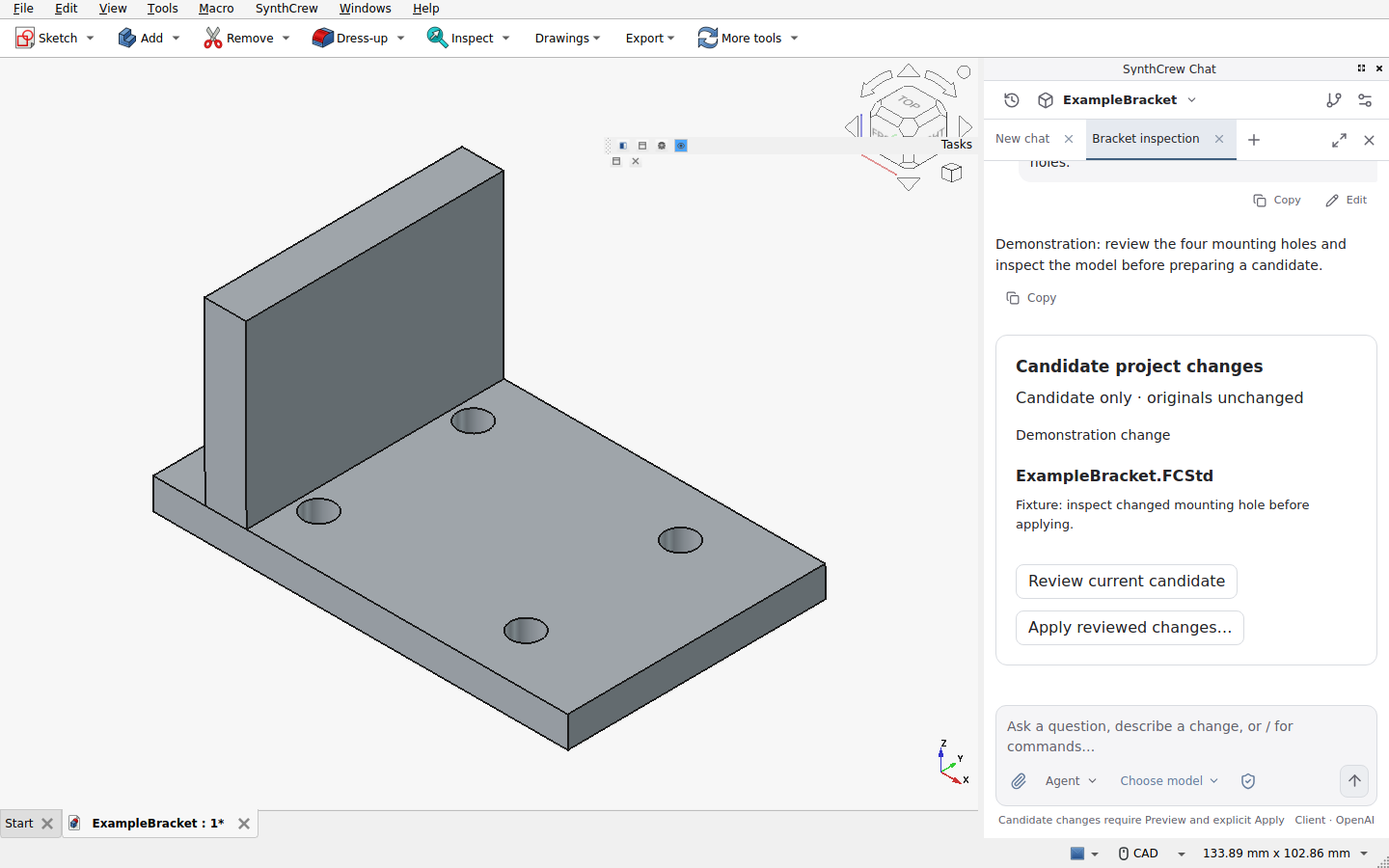
Review and decide
- Finish or stop the run. On its candidate card, select Review current candidate.
- In Review workarea changes, select each changed file. Text files show a read-only preview; a removal is marked as pending, not yet removed. The active-document context snapshot is excluded from this list.
- For a FreeCAD document, select Open FreeCAD copy to inspect a separate candidate. Switch back to the source document afterwards. Review geometry and engineering requirements yourself; the preview is not a certification.
- Only if you accept the current candidate, choose Apply reviewed changes…, read the confirmation and explicitly confirm. A successful status identifies the changed project files. Clean affected CAD documents may reload; local snapshots are preserved before automatic reload.
If Apply is blocked
- Candidate changed after Preview or during confirmation: select Review current candidate again and inspect the new contents before confirming Apply.
- The original, active document or open-document set changed since the run began: no files were applied. Inspect and save or resolve your current work, then start a new run against that state and review its candidate.
- A project document is unsaved or dirty: save or resolve those edits first. If the source was unsaved when the run began, open the candidate as a separate copy and start a fresh run after saving the source; do not discard unsaved work to force Apply.
- General chat has no project: open a real project and start a project chat. No changed files means there is nothing to apply.
- Apply reports a conflict or failure: stop and inspect the stated files and status. Preserve the original and local snapshots; reconcile the changes deliberately and review a fresh candidate. If a reload fails after promotion, the status says so and a local snapshot is retained; inspect both before proceeding.
Independent checks for geometry, constraints, material, loads and manufacturing remain your responsibility.